Jan 27, 2026

Pawel Gola
Framer & Webflow Expert
The demand for seamless design-to-development workflows is transforming how teams build digital products in 2026. Designers and developers face ongoing challenges bridging creativity with real-world functionality. Frustrations from lost details and slow processes are common in outdated handoff methods.
This guide demystifies the figma to framer workflow, unlocking faster, pixel-perfect, and interactive website creation. Discover the latest features from both platforms, a step-by-step handoff process, proven best practices, and advanced collaboration strategies.
Stay ahead by mastering the figma to framer process, and turn your creative visions into live, interactive experiences with confidence.
Why Designers and Teams Choose Figma and Framer in 2026
In 2026, creative teams face more pressure than ever to deliver stunning digital experiences quickly. The figma to framer workflow stands out as a game-changer for agencies, startups, and product teams striving for seamless collaboration and rapid deployment. What makes these tools the top choice for modern design-to-development needs?

The Evolution of Figma and Framer
Figma has become the cornerstone of collaborative design, enabling distributed teams to co-create user interfaces in real time. Its cloud-based platform supports instant feedback, live editing, and robust design systems, making it the default tool for digital product teams by 2026.
Framer, meanwhile, has evolved from a prototyping tool into a leading no-code platform for building and publishing interactive websites. With intuitive drag-and-drop features, built-in animations, and direct deployment capabilities, Framer empowers designers to bring ideas to life without writing code.
The synergy between figma to framer is even stronger thanks to recent updates. Both tools now offer AI-powered design suggestions, real-time multi-user editing, and advanced plugin ecosystems. Their native integration allows for frictionless handoff, minimizing manual rework and boosting team productivity. According to a 2026 industry survey, over 65 percent of digital agencies use both platforms together for rapid prototyping and deployment.
For a deeper look at how these platforms integrate, see Figma's Integration with Framer, which highlights the enhanced workflow and new capabilities available to creative teams.
Benefits of a Figma-to-Framer Workflow
The figma to framer process streamlines the entire journey from concept to live website. Agencies and startups benefit from unified workflows, reducing time-to-market for product launches by eliminating redundant steps and miscommunication.
Key benefits include:
Faster project delivery: Designs move from Figma to Framer in minutes, not days.
Enhanced collaboration: Designers, developers, and marketers work from a single source of truth, minimizing friction.
Consistent user experience: Design systems and shared libraries ensure branding and UI standards are maintained across every page.
Lower operational costs: Automation and AI features reduce manual labor and repetitive tasks.
A SaaS startup recently reported a 40 percent reduction in design-to-development handoff time after adopting the figma to framer approach. This allowed their team to iterate quickly, respond to market feedback, and deliver a polished product ahead of schedule. The workflow also improves user experience by preserving design intent and eliminating inconsistencies.
Key Challenges Addressed by Seamless Handoff
Despite the advantages, traditional design-to-code handoffs often introduce friction and errors. The figma to framer workflow addresses these pain points directly.
Common challenges include:
Design inconsistencies: Manual exports can lead to style drift or missing assets.
Communication gaps: Developers may misinterpret static designs, leading to delays.
Limited interactivity: Static mockups fail to capture the full user experience, requiring extra development cycles.
Seamless handoff bridges the gap between static visuals and interactive prototypes. Real-world teams have faced issues like misaligned specs and delayed launches due to unclear documentation. By leveraging figma to framer, teams eliminate miscommunication, ensure pixel-perfect accuracy, and deliver interactive web experiences faster.
Preparing Your Figma Files for Framer Export
Preparing your Figma files is the foundation for a seamless figma to framer workflow. Proper setup not only accelerates the handoff but also ensures your designs render accurately and interactively in Framer. Let’s break down the key steps for optimal preparation.
Structuring and Organizing Your Figma Project
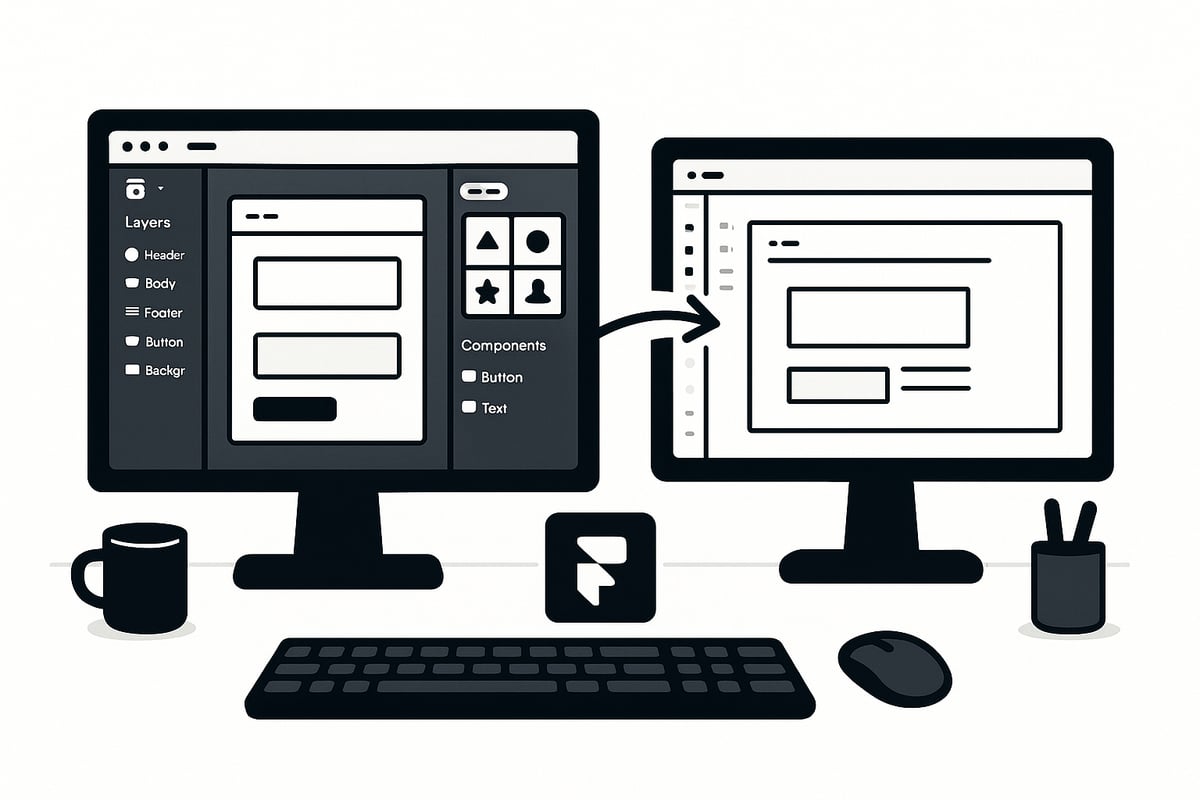
A well-organized Figma project is the backbone of any successful figma to framer handoff. Start by establishing clear naming conventions for layers and groups. This makes it easy for Framer to interpret your design hierarchy, reducing confusion and manual adjustments post-import.
Name every layer and frame descriptively
Group related UI elements logically
Convert repeating elements into Figma components for reusability
Use Figma’s auto-layout and constraints to create responsive layouts. This not only streamlines the figma to framer import but also ensures your design adapts across device sizes. Compare the following:
Well-Structured Figma File | Messy Figma File |
|---|---|
Consistent naming, grouped layers | Random names, ungrouped objects |
Components for repeated elements | Duplicated, unlinked elements |
Auto-layout for responsiveness | Fixed positions, no constraints |
For more in-depth strategies on organizing your files, see the Figma Website Template Guide.
Design System Consistency and Component Libraries
Maintaining a consistent design system in your Figma project is critical for a smooth figma to framer export. Leverage Figma’s shared libraries to centralize colors, typography, and spacing. This ensures every element adheres to your brand’s standards.
Set up color styles and text styles globally
Use spacing and grid tokens for layout consistency
Link components to shared libraries for easy updates
Applying variables and tokens allows for scalable design updates, making post-import tweaks in Framer far less time-consuming. Notably, teams with established design systems report a 30% reduction in rework, underlining the value of this practice.
Asset Preparation: Images, Icons, and SVGs
Asset preparation is a crucial step in the figma to framer process. Export images in optimal formats such as PNG or JPG for photos, and SVG for icons or vector graphics. Organize your assets into folders so they’re easy to map in Framer.
Export icons and logos as SVG for scalability
Optimize large images to reduce file size without sacrificing quality
Name assets clearly for efficient import
When preparing vectors, ensure they are clean and free of unnecessary groups. Optimizing a large hero image, for example, can significantly boost your Framer site’s loading speed and performance.
Accessibility and Responsive Design Considerations
Accessibility should be embedded in your Figma workflow before moving to figma to framer. Add alt text to relevant layers and include focus indicators for interactive elements. Design with a mobile-first approach, using Figma’s device frames to preview responsiveness.
Check color contrast ratios for readability
Set up keyboard navigation paths
Preview designs on different device frames in Figma
By prioritizing accessibility and responsiveness now, you minimize rework after import and deliver a better user experience for everyone.
Step-by-Step Guide: Exporting from Figma and Importing to Framer
The figma to framer workflow in 2026 is more streamlined and intuitive than ever. Whether you're a designer, developer, or product manager, understanding each step of this process ensures a seamless handoff and pixel-perfect results. This guide walks you through each stage, providing actionable tips and highlighting best practices along the way.
Step 1: Reviewing and Finalizing Your Figma Design
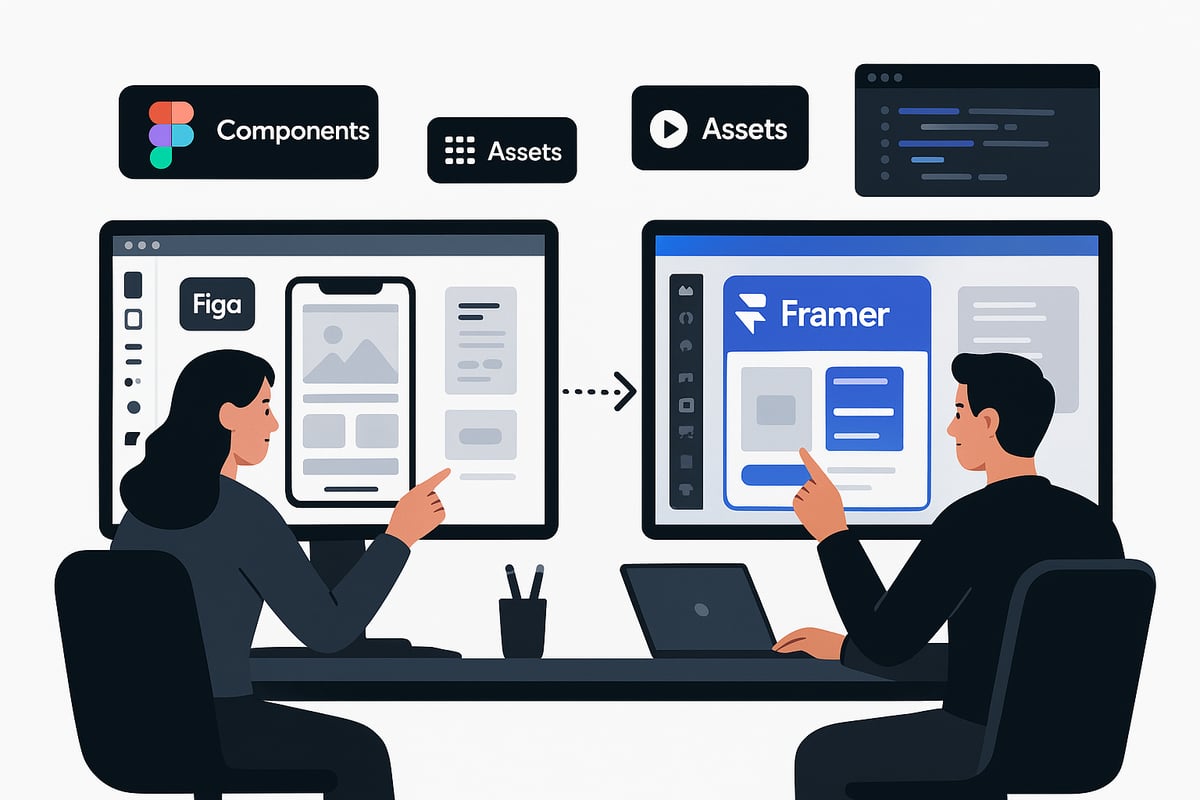
Before starting the figma to framer transition, ensure your Figma design is complete and fully aligned with your project’s requirements. Begin by checking that all components, assets, and global styles are in place and consistently applied.
Use a checklist to confirm:
All components are used where appropriate
Text styles, color tokens, and spacing variables are consistent
Assets (images, icons, SVGs) are organized and labeled
Peer reviews are crucial at this stage. Invite collaborators to leave comments directly in Figma. Address feedback promptly to resolve inconsistencies and catch overlooked details. A thorough review now prevents costly revisions later in the figma to framer process.
Step 2: Preparing Figma Files for Export
The quality of your export directly impacts the figma to framer import experience. Start by selecting the frames and layers you intend to transfer. Use clear naming conventions and group related elements for easy mapping in Framer.
When exporting assets, choose the optimal format:
SVG for icons and vector graphics
PNG for raster images with transparency
JPEG for photos and large hero images
Figma’s export settings allow you to specify resolution and compression. For complex projects, consider using plugins that optimize SVGs or batch-export assets in bulk. Well-prepared exports help maintain design fidelity and reduce manual adjustments after the figma to framer import.
Step 3: Initiating the Figma-to-Framer Import
With your Figma files ready, it’s time to import them into Framer. Access Framer’s Figma import tool, which has evolved significantly in 2026. Log in to your Framer account and connect your Figma credentials securely. This ensures a direct link between both platforms.
Follow the step-by-step interface to select the Figma design you want to import. Framer will prompt you to choose the specific frames or pages for import. For large projects, importing multi-page Figma files saves time and keeps your workspace organized. To make synchronization even smoother, consider using the Framer Figma Sync Plugin, which automates updates and reduces errors during the figma to framer handoff.
Step 4: Mapping Figma Components to Framer Elements
Once your design is imported, Framer translates Figma components into interactive elements on its canvas. Review each component to ensure it retains intended properties, such as auto-layout, constraints, and nested structures.
Address common issues like missing fonts or unsupported effects immediately. Use Framer’s inspector to map Figma components to Framer widgets, adjusting settings as needed. If your team relies on custom plugins or advanced features, test their compatibility early in the figma to framer process for a seamless transition.
Troubleshooting tips:
Replace unsupported fonts with Framer’s web-safe alternatives
Adjust shadows or effects that did not import correctly
Realign layers or groups for accurate stacking and behavior
Step 5: Refining and Enhancing in Framer
With your design mapped, refine layouts and add interactivity within Framer. The figma to framer workflow now shifts from static visuals to dynamic prototypes. Adjust responsive settings to ensure layouts adapt across devices.
Take advantage of Framer’s animation and micro-interaction tools. For example, you can turn a static pricing page from Figma into an interactive calculator in Framer. Integrate CMS data to power dynamic content on landing pages, blogs, or product listings.
Use Framer’s asset manager to further optimize images, compress files, and organize resources. These refinements elevate the user experience and help you realize the full potential of the figma to framer workflow.
Step 6: Testing and Previewing Your Framer Project
The final step in the figma to framer journey is thorough testing. Use Framer’s live preview and device simulation tools to see how your project performs on various screens. Test across browsers and platforms to catch any layout or performance issues.
Invite stakeholders to review the project and provide feedback directly within Framer. Address any concerns and iterate quickly. Proper testing ensures your site is ready for launch and delivers a consistent experience to all users.
By following this figma to framer guide, you can dramatically reduce handoff friction and achieve production-ready results faster.
Best Practices for a Seamless Figma to Framer Handoff
A successful figma to framer workflow hinges on more than just technical know-how. Teams that adopt proven best practices consistently deliver higher-quality products, with fewer delays and less rework. In this section, discover how to streamline your process and unlock the true potential of figma to framer collaboration.

Establishing a Clear Handoff Protocol
To ensure your figma to framer handoff runs smoothly, set clear expectations from the outset. Define roles, responsibilities, and timelines for each project milestone.
Documentation is essential. Create detailed handoff checklists that outline what must be completed before moving designs to Framer. Use Figma and Framer’s built-in comment and version control features to track updates and resolve questions quickly.
Consider referencing Design Handoff Best Practices to build robust protocols that minimize miscommunication and clarify deliverables for every stakeholder.
Regular sync meetings help teams stay aligned and catch potential issues early. By prioritizing transparency, your figma to framer workflow will be more predictable and efficient.
Maintaining Design Consistency Across Platforms
One of the top priorities in any figma to framer process is design consistency. Sync your design tokens and variables between both platforms to maintain visual standards.
Avoid style drift by creating shared libraries and leveraging Figma’s component system. When exporting, double-check that styles, colors, and typography are preserved in Framer.
Collaboration with developers is crucial. Use side-by-side previews and shared documentation to ensure the final product matches the Figma vision. A consistent approach reduces rework and helps teams maintain a pixel-perfect experience across every device.
Optimizing for Performance and Accessibility
Performance and accessibility are non-negotiable in a modern figma to framer workflow. Compress images and optimize assets immediately after import to Framer. This step alone can improve load times by up to 25 percent, especially for image-heavy SaaS sites.
Always use alt text, proper labeling, and keyboard navigation support in Figma before handoff. Test interactive elements in Framer for accessibility compliance.
Responsive design is a must. Preview layouts across multiple devices and browsers to guarantee a seamless experience. By embedding accessibility and performance checks into your figma to framer process, you deliver sites that are fast and usable for everyone.
Leveraging Automation and AI Tools
The figma to framer workflow in 2026 is powered by automation and AI. Use AI-powered plugins to accelerate asset mapping, automate repetitive exports, and auto-tag components for easy import.
Set up scripts or use built-in automation tools to handle bulk exports and synchronize updates between Figma and Framer. Automation reduces manual handoff errors by 20 percent, freeing your team to focus on creative problem-solving.
Stay updated on new plugins and integrations to further streamline your figma to framer pipeline. Embracing automation not only saves time but also increases project accuracy and team satisfaction.
Advanced Collaboration, Version Control, and Real-World Workflow Tips
Design teams in 2026 demand robust collaboration and version control as they move from figma to framer. Mastering these advanced practices ensures efficiency and scalability, even for distributed or enterprise-level teams.
Real-Time Collaboration Features in Figma and Framer
Figma to framer workflows thrive on real-time collaboration tools. Both platforms support simultaneous editing, letting designers and developers work together without bottlenecks.
Role-based permissions help teams manage access, ensuring only authorized members make critical changes. Built-in commenting and approval workflows streamline communication, keeping feedback organized and actionable.
For example, a remote agency managing multiple client projects can synchronize updates between Figma and Framer instantly. This reduces delays and enables distributed teams to deliver consistent results, regardless of location.
Version Control and Rollback Strategies
Effective version control is essential for any figma to framer process. Figma’s branching and version history allow teams to experiment safely, creating multiple design directions without risk.
When changes need to be reversed, both Figma and Framer offer easy rollback options. Framer’s project backup and restore features provide additional security, letting teams recover previous work quickly.
Best practices include maintaining clear naming conventions for branches, documenting changes, and scheduling regular reviews. This structure minimizes confusion and maintains project integrity throughout the design-to-development cycle.
Integrating with Other Tools in the 2026 Design Stack
A successful figma to framer workflow extends beyond design tools. Connecting Figma and Framer with Asana, Jira, Slack, or Notion automates feedback loops and streamlines project management.
For SaaS teams, integrating these platforms reduces manual handoff steps and accelerates review cycles. Using resources like the Best Free SaaS Framer Templates can further boost productivity, offering ready-made starting points for new projects.
Automation ensures stakeholders stay informed, while integrations help teams focus on delivering high-quality, interactive sites with minimal friction.
Scaling Handoffs for Large Teams and Agencies
As organizations grow, figma to framer handoffs must scale efficiently. Large teams benefit from organized design systems, detailed permissions, and clear communication channels.
Managing multi-user access becomes critical when delivering dozens of sites each year. A global agency can maintain consistency by syncing component libraries and standardizing workflows across locations.
Case studies show that agencies leveraging figma to framer achieve higher throughput, delivering 50+ sites annually with fewer post-handoff revisions and improved client satisfaction.
Common Pitfalls and How to Avoid Them in 2026
In the fast-paced world of figma to framer workflows, even small missteps can lead to project delays and lost productivity. By understanding the most common pitfalls, your team can proactively address them and ensure a seamless handoff every time.
Misaligned Design Systems and Inconsistent Components
One of the most frequent issues in figma to framer transitions is misaligned design systems. When Figma libraries are not synced with Framer, inconsistencies in colors, typography, or components can disrupt the user experience.
Regular audits and automated syncing help maintain consistency. Detailed documentation also bridges gaps between design and development. Leveraging resources like the Figma Templates Collection can further streamline your design system, minimizing friction at handoff.
Asset and Font Compatibility Issues
Asset and font compatibility often pose challenges during figma to framer exports. Missing fonts and unsupported effects can break layouts or require last-minute fixes.
To avoid these headaches, always run pre-import checks. Stick to recommended file formats such as SVG for icons and web-safe fonts. This ensures a smoother import and reduces the risk of visual discrepancies.
Overlooking Accessibility and Performance
Accessibility and performance are sometimes overlooked in the figma to framer workflow. Skipping alt text, focus indicators, or mobile optimization can lead to inaccessible products and slow load times.
Optimize images and compress large assets before import. Using guidance from the Framer Templates Overview helps you follow performance best practices, ensuring faster, more accessible sites for everyone.
Inefficient Collaboration and Communication Gaps
Poor communication is a leading cause of figma to framer handoff problems. Unclear protocols or missing documentation can result in duplicated work and misunderstandings.
To combat this, establish standardized handoff checklists. Schedule regular sync meetings and maintain shared documentation so everyone stays aligned throughout the process.
Example: Agency Case Study on Avoiding Handoff Delays
A digital agency faced repeated delays in their figma to framer projects due to inconsistent handoff workflows. By introducing structured documentation, automated syncing, and weekly team check-ins, they reduced post-handoff revisions by 50 percent.
Proactive collaboration and clear guidelines transformed their workflow, proving that attention to these common pitfalls yields measurable results.
Share article


$249
$3601
All Access
Save with our all access bundle - get access to all premium Framer templates.
38
+
Framer Templates
51
+