
Feb 1, 2026

Pawel Gola
Framer & Webflow Expert
Digital design is evolving at breakneck speed, and by 2026, Figma stands at the center of this transformation. As teams face growing design complexity, mastering figma files becomes vital for seamless collaboration and innovation.
This guide breaks down the essentials, from understanding core file concepts to advanced organization, collaborative workflows, and integrating design systems. Discover how Figma’s cloud-based features empower teams to work smarter together.
Ready to elevate your process? Dive in for actionable tips and proven strategies to unlock new productivity and creative heights with figma files.
Understanding Figma Files: Core Concepts for 2026
The digital design landscape is constantly evolving, and figma files have become the cornerstone of modern workflows. As teams look to streamline processes and foster innovation, understanding what figma files offer is crucial for staying ahead.

What Are Figma Files?
Figma files are cloud-based design documents that enable teams to create, iterate, and share digital products in one unified space. Unlike static files, figma files are always accessible online, ensuring everyone works from the latest version. This approach eliminates confusion caused by outdated attachments or version mismatches, making figma files essential for distributed teams.
The Architecture of Figma Files
Every figma file is built on a robust, cloud-first architecture. This means files are updated in real time, with version control baked in. Designers can track changes, restore previous states, and capture key project milestones. The core interface is divided into four main regions, each serving a specific function:
Region | Description |
|---|---|
Toolbar | Tools for selection, creation, and editing |
Left Sidebar | Layers, assets, pages, and organizational tools |
Right Sidebar | Properties, sharing, comments, permissions |
Canvas | Main working area for design and prototyping |
This structure ensures that figma files are intuitive and navigable, no matter the complexity.
Navigating the Figma File Interface
The intuitive layout of figma files accelerates onboarding and reduces friction for new team members. The toolbar enables quick access to design and manipulation tools. The left sidebar helps manage layers, assets, and pages, while the right sidebar is dedicated to properties, collaboration, and permissions. The canvas provides a limitless workspace, supporting pan and zoom for stress-free exploration. Accessibility features and interface customization further enhance the usability of figma files for all users.
Collaboration and Version History
One of the greatest strengths of figma files is real-time collaboration. Multiple users can edit, comment, and review designs simultaneously. Version history allows teams to track the evolution of a project, restore earlier iterations, and capture important milestones for documentation. This transparency reduces bottlenecks and keeps everyone aligned. Figma files are accessible to designers, product managers, developers, and writers, making cross-functional teamwork seamless.
Real-World Examples and Industry Adoption
Figma files are used to build everything from portfolios and landing pages to complex product prototypes. Teams leverage them for rapid prototyping, user testing, and even developer handoff. According to recent reports, Figma’s paid customer count continues to rise, reflecting widespread adoption across industries. For guidance on structuring teams and files, refer to Figma's Best Practices for Team and File Organization, which offers actionable strategies to boost collaboration and efficiency.
Figma files are more than just digital canvases; they are dynamic, living documents that empower teams to innovate together. By mastering their core concepts, you lay the foundation for efficient, forward-thinking design workflows.
Mastering File Organization: Pages, Layers, and Naming Conventions
Organizing figma files well is the backbone of efficient, scalable design projects. Without a thoughtful structure, even the most skilled teams risk confusion, lost time, and inconsistent results. Clear organization is not just about neatness—it is about unlocking the full collaborative and creative power of figma files for your team.
Structuring Pages and Layers for Clarity
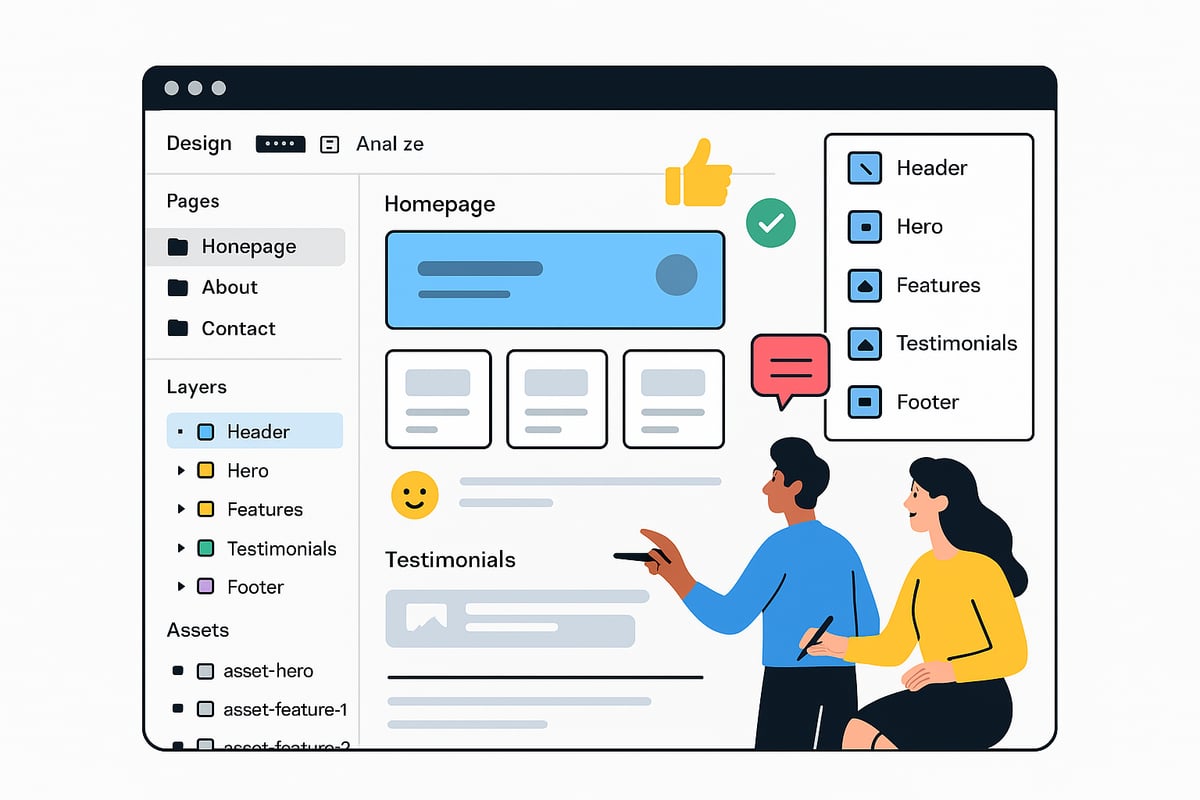
A well-organized figma file begins with a solid structure. Start by planning your pages: each should have a clear purpose, such as milestones, components, scratchpads, or archives. For example, you might use one page for your main product flow, another for design system components, and a third for archived iterations.
Within each page, layer management is crucial. Figma files allow you to create a hierarchy of frames, groups, and sections. Use parent and child relationships to keep related elements together and maintain a logical order. Frames are ideal for defining screens or logical boundaries, while groups help bundle UI elements.
Naming conventions cannot be overstated. Avoid generic or confusing labels like "final_final_v2." Instead, adopt a standard such as "Component/Button/Primary" or "Screen/Onboarding/Step1." Consistent naming helps everyone navigate figma files quickly and reduces onboarding friction for new collaborators.
Visual cues offer instant recognition at a glance. Color-code layers and pages for different feature sets or project phases. Emojis add personality and clarity: a 🔒 for locked assets, 🗑️ for archive, or 🧩 for reusable components. Custom thumbnails also help teams identify key pages without opening each one.
Consider the variety of page types you can include in your figma files:
Spec pages for detailed documentation
Playground pages for exploration and experimentation
Prototype pages for interactive flows
Graveyard pages for deprecated designs
Flowchart pages for user journeys
Local components for isolated design elements
Cover pages for project overviews
Learning from industry leaders can refine your approach. Spotify, for instance, structures figma files by project, then by team, then by file—creating clarity across large organizations. Other companies use similar multi-level hierarchies, always prioritizing clarity and findability.
For more inspiration on advanced organization and real-world examples, explore the Best Figma templates for 2026, which showcase how top teams structure their figma files for maximum efficiency and collaboration.
Strategies for Complex Flows and Team Scalability
As projects grow, figma files can become complex. Handling intricate flows starts with breaking large processes into smaller, manageable sections. Annotate frames with clear descriptions so that stakeholders and developers always know the context.
Use visual organization to your advantage. Color-coded backgrounds, labeled sections, and emoji tags make navigation stress-free, even in large figma files. Custom thumbnails on pages provide a quick visual index, saving time during team reviews.
Review and archive regularly. Outdated designs should be moved to archive pages or clearly marked as deprecated. This keeps the active workspace focused and prevents confusion. Document all major changes in a changelog or annotation section—transparency streamlines handoff and future revisions.
Establish best practices for your team:
Best Practice | Description |
|---|---|
Consistent Naming | Use clear, standardized labels for all layers |
Visual Cues | Apply colors, emojis, and thumbnails for clarity |
Page Typing | Assign specific roles to each page |
Layer Hierarchy | Group related items and use frames strategically |
Regular Review | Archive outdated content and document changes |
Organized figma files empower teams to scale confidently. Clean structure accelerates onboarding, reduces errors, and ensures every collaborator—designer, developer, or stakeholder—can find what they need. By mastering file organization, you set the foundation for efficient workflows and creative innovation.
Collaborative Workflows: Real-Time Design, Feedback, and Handoff
Collaboration is at the heart of what makes figma files transformative for modern design teams. Real-time workflows empower designers, product managers, and developers to work together seamlessly. Instead of version chaos or endless file attachments, figma files unite everyone in a single, always-synced environment.

Managing Permissions and Roles
Figma files allow teams to set precise access controls, ensuring that every collaborator has the right level of involvement. Roles include:
Editors: Can design, prototype, and modify content.
Viewers: Review work and leave comments.
Admins: Manage sharing, team structure, and permissions.
By assigning the correct roles from the start, teams maintain design integrity and security. Sharing settings in figma files are flexible, supporting both public reviews and confidential projects. This clarity keeps workflows smooth and reduces bottlenecks.
Feedback and the Power of the Right Sidebar
The right sidebar in figma files is a hub for feedback and communication. Team members can:
Leave contextual comments directly on designs.
Resolve feedback threads to document decisions.
Use audio chat for quick clarifications.
Inspect properties for detailed specs.
These features streamline collaboration, making it easy to gather input from all stakeholders. For complex projects, the sidebar's commenting and property inspection tools in figma files ensure that no detail is missed during reviews.
Seamless Developer Handoff and Stakeholder Integration
When it is time to move from design to development, figma files simplify the handoff process. The platform’s Dev Mode enables developers to extract ready-to-code assets, specifications, and measurements without delay. This reduces manual work and eliminates miscommunication.
Stakeholders such as product managers and clients can participate in the review process directly within figma files. This transparency accelerates approvals and ensures alignment across disciplines. Real-world collaborative results can be seen in Figma website template inspirations, where structured files support efficient teamwork and rapid iterations.
Version Control, Real-World Acceleration, and Measurable Impact
Version control in figma files is robust. Branching and merging let teams experiment safely, while restoring previous versions captures key milestones. This flexibility supports creative exploration without risk.
Cross-functional teams leveraging collaborative figma files consistently report faster product cycles. Data shows that design-to-development handoff time can be reduced by up to 30 percent compared to traditional tools. By centralizing design, feedback, and handoff, figma files unlock new levels of productivity and innovation for every team.
Advanced Figma File Strategies and Future-Proofing for 2026
Staying ahead in digital design means making your figma files not only powerful today but also adaptable for tomorrow. As design teams expand and projects grow more complex, future-proofing figma files is essential for ensuring long-term success and scalability. Let’s explore advanced strategies that will set your work apart in 2026 and beyond.
Embracing AI, Automation, and Smart Components
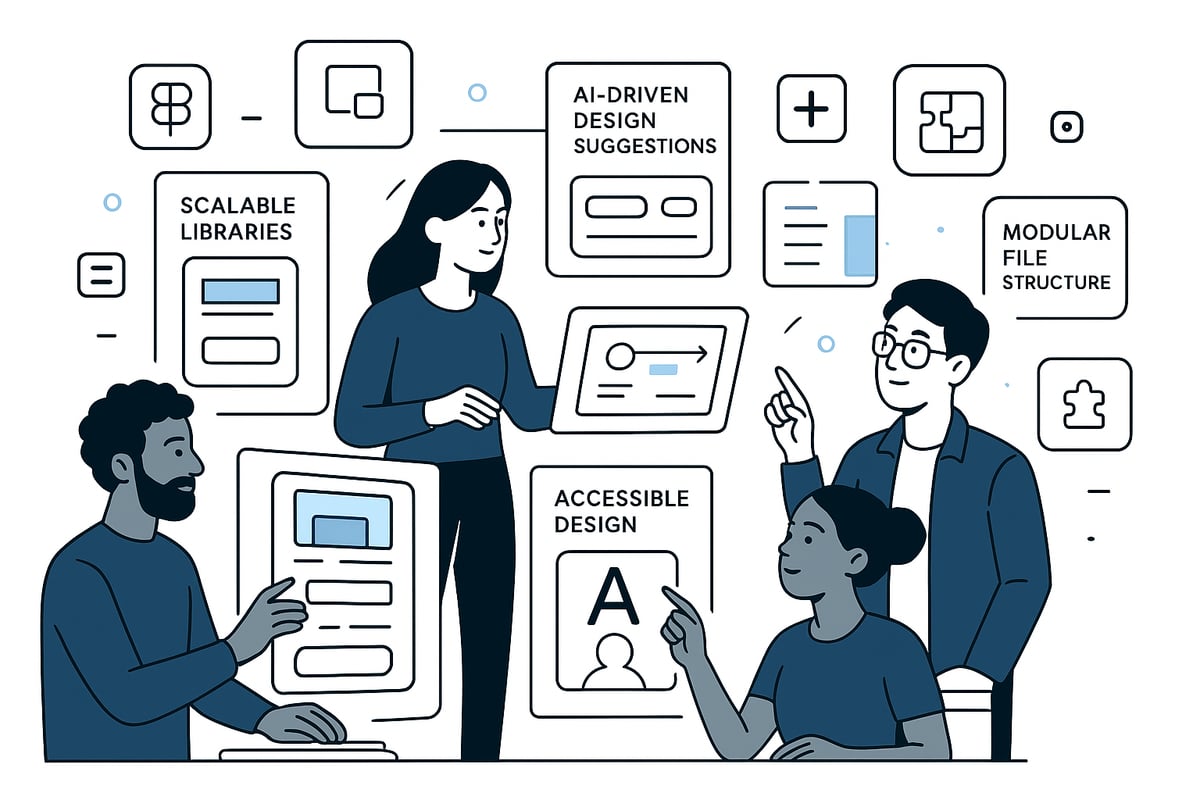
The latest evolution of figma files centers on AI-powered features, automation, and smart components. AI tools now suggest layouts, generate copy, and even flag accessibility concerns as you work. Automation scripts handle repetitive tasks, freeing up creative energy for innovation. Smart components adapt to design changes, reducing manual updates and ensuring consistency throughout figma files.
According to Figma's AI Strategy in 2025, these advancements are driving adoption and transforming workflows. Forward-thinking teams are leveraging these tools to accelerate iteration and boost overall efficiency.
Building Scalable Design Systems and Libraries
A robust design system is the backbone of sustainable figma files. By organizing reusable components, colors, and typography into shared libraries, teams maintain consistency across products and platforms. Using the Figma templates category overview, you can browse and implement ready-made libraries to jumpstart your own system.
Best practices for scalable design systems in figma files:
Centralize core assets in a single library file.
Use clear naming conventions for components.
Document usage guidelines for each element.
Regularly audit and update assets as brand needs evolve.
Strategy | Benefit | Example |
|---|---|---|
Shared Libraries | Consistent UI/UX | Design tokens, icons |
Smart Components | Faster updates | Buttons, forms |
Documentation Pages | Team onboarding | Usage guides |
Enhancing Accessibility and Integrating Plugins
Ensuring all team members can contribute to figma files means prioritizing accessibility. Use high-contrast color palettes, semantic labeling, and alt text for all assets. Figma’s plugin ecosystem offers accessibility checkers, color blindness simulators, and tools for automated audits. Integrating third-party plugins extends the functionality of figma files, allowing seamless handoff to development, content management, or project tracking platforms.
Popular plugins to future-proof figma files:
Stark (accessibility checks)
Autoflow (user journey mapping)
Figmotion (advanced animation)
Preparing for Growth: Modularity and Documentation
As your projects scale, modular figma files become critical. Break complex designs into manageable sections, group related components, and use frames or pages to organize workflows. Maintain clear documentation within figma files for onboarding and knowledge transfer.
Here’s a sample documentation snippet you can embed in your files:
A SaaS startup, for example, transformed its design operations by implementing modular figma files, thorough documentation, and automated audits. This approach reduced onboarding time for new designers and supported continuous scaling.
Competitor research reveals that leading tech companies prioritize sustainable figma files by adopting similar strategies. Regular reviews, documentation, and component audits keep files clean and future-ready.
By integrating these advanced techniques, your figma files will remain adaptable, efficient, and relevant—no matter how design trends shift.
Best Practices and Expert Tips for Unlocking Design Potential
The future of design hinges on how efficiently teams use figma files. Mastering the fundamentals of file hygiene, consistency, and collaboration can transform your workflow from chaotic to cohesive. As you look ahead to 2026, adopting a disciplined approach to figma files will empower your team to design with speed and clarity.
Recap: The Cornerstones of Effective Figma Files
Start by embracing the basics. Every successful project relies on figma files that are logically structured, consistently named, and regularly maintained. This foundation reduces friction, streamlines communication, and keeps your design assets future-ready.
Be proactive about organizing pages, layers, and assets from the outset. Clear hierarchies and a standardized approach to naming help everyone find what they need quickly. When figma files are intuitive, onboarding new contributors becomes effortless, and design iterations accelerate naturally.
Pro-Level File Management Tips
Implementing a few expert strategies can dramatically improve your figma files:
Schedule regular file audits to archive outdated pages and layers.
Use color-coding, emojis, and custom thumbnails for instant visual cues.
Document major changes directly in the file, using annotation frames or changelogs.
Limit the use of ambiguous names like "final" or "v2," and instead, apply descriptive labels referencing page purpose or version.
Leverage templates and starter kits to ensure a uniform structure across projects.
For more specific advice on organizing project assets, read these Figma landing page design tips to see how top teams keep their files streamlined and effective.
Establishing Team Standards for Figma Files
Consistency is key to scalable design. Set clear guidelines for file structure, page labeling, and layer organization. Develop and document your team's naming conventions, color schemes, and archiving protocols. This helps prevent confusion as your project or team grows.
Assign roles for file maintenance, so every member understands their responsibilities. Use collaborative features to assign comments, review changes, and ensure everyone is aligned. Adopting shared standards for figma files fosters trust and boosts productivity across all stakeholders.
Knowledge Sharing and Onboarding Success
Empower your team by making knowledge accessible. Create onboarding guides and walkthroughs that explain your figma files setup. Offer reusable templates and training sessions for both designers and non-designers.
Encourage a culture of open feedback and continuous improvement. When everyone understands your figma files structure, they can contribute more confidently, reducing errors and accelerating delivery.
Common Pitfalls and Real-World Transformation
Avoid these frequent mistakes:
Overcrowded layers and pages without logical grouping
Vague or duplicated names like "button copy" or "header 2"
Lack of documentation or context for design decisions
Consider this before-and-after scenario:
Aspect | Disorganized File | Optimized Figma File |
|---|---|---|
Page Names | Untitled, Playground | Home, Components, Archive |
Layer Structure | Flat, mixed elements | Nested, grouped logically |
Visual Cues | None | Color-coded, thumbnails |
Documentation | Missing | Annotations, changelogs |
A simple shift to structured figma files can save hours in handoff and revision cycles.
The Measurable Impact: Data and Checklist
Adhering to best practices has a tangible effect. Teams who prioritize organized figma files report up to a 30% faster project turnaround and significantly fewer miscommunications. According to Figma's Paid Customer Growth, more organizations are investing in these workflows to gain a competitive edge.
Quick Checklist for Figma Files Excellence:
Plan and label pages before adding content
Use consistent naming for layers and assets
Apply color and thumbnails for clarity
Document major changes and annotate flows
Conduct regular file audits and archive as needed
Share templates and onboarding materials with new team members
By following these expert tips, your figma files will become a catalyst for creativity and efficiency in every project.
Share article




$249
$3601
All Access
Save with our all access bundle - get access to all premium Framer templates.
38
+
Framer Templates
51
+