
Feb 11, 2026

Pawel Gola
Framer & Webflow Expert
Web development in 2026 moves faster than ever, with teams demanding pixel-perfect results and seamless workflows. Bridging the gap between stunning designs and live websites is essential for success. This guide explains how to convert figma to html using the most advanced tools and methods available today.
Discover why mastering figma to html remains crucial for modern web projects. Explore trending plugins, proven workflows, and best practices that guarantee responsive, accessible, and maintainable code. Whether you are a designer, developer, or part of a team, you will find practical steps to streamline your design-to-code process and deliver outstanding results.
Why Convert Figma to HTML in 2026?
The leap from design to code has never been more crucial. As the web evolves, so do the methods for turning inspired Figma designs into robust, production-ready HTML. In 2026, figma to html conversion is at the heart of rapid digital innovation, empowering teams to move from concept to launch with unprecedented speed and accuracy.
The Evolution of Design-to-Code Workflows
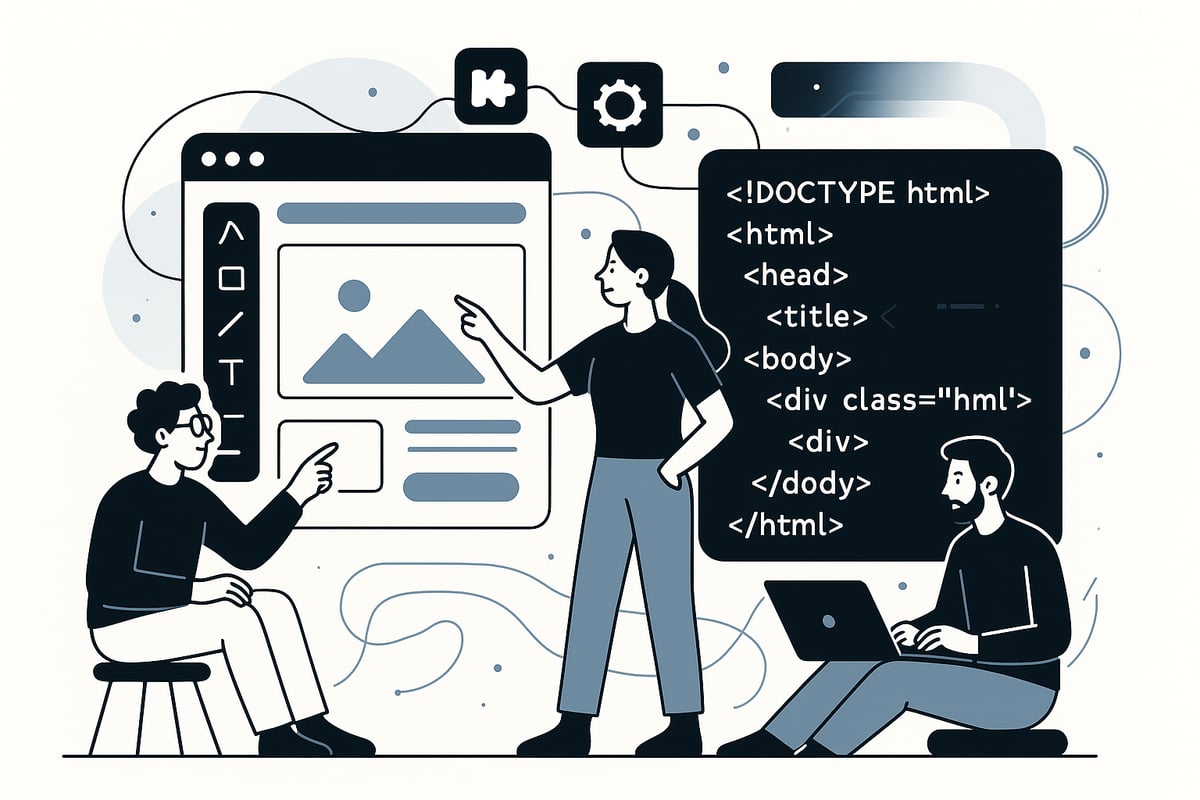
Web development has undergone a powerful transformation over the past decade. The journey from static mockups to interactive sites is now more collaborative and efficient. Figma’s real-time editing and cloud-based features have made teamwork seamless, removing traditional bottlenecks.
With the increasing pressure for faster prototyping and shipping, figma to html workflows have become essential. New browser capabilities and evolving web standards in 2026 demand cleaner, more responsive code. Teams now expect a seamless handoff from design to development, reducing friction and ensuring consistent results.
Benefits of Figma to HTML Conversion
Converting figma to html offers significant advantages for modern web projects:
Preserves design fidelity and ensures consistency across devices
Speeds up development cycles, cutting down manual coding tasks
Enables rapid prototyping and iterative improvements
Supports responsive layouts and accessible web experiences
Fosters closer collaboration between designers and developers
These benefits make figma to html not just a technical task, but a strategic advantage for organizations aiming for excellence in user experience and delivery.
Common Use Cases and Industries
Figma to html workflows are now standard across diverse sectors. Agencies rely on them to deliver client websites efficiently. Startups use figma to html for quick MVP launches and landing pages. SaaS companies leverage these methods to maintain scalable design systems.
E-commerce businesses require pixel-perfect storefronts, making figma to html a must. Freelancers also capitalize on full-stack design-to-code services, expanding their offerings and client reach. This widespread adoption proves the versatility and scalability of figma to html in today’s market.
Challenges and Pitfalls to Avoid
Despite the advantages, figma to html conversion comes with challenges. Loss of design details or responsiveness can occur during export. Automated tools may generate bloated or hard-to-maintain code if not configured correctly.
Miscommunication between design and development teams sometimes results in missed requirements. Accessibility and SEO can be overlooked in exported HTML. Staying current with web standards is also critical as the landscape shifts rapidly. Awareness of these pitfalls helps teams achieve higher-quality outcomes.
Key Stats and Trends for 2026
The landscape for figma to html is data-driven and fast-moving. Modern plugins have slashed manual coding time by over 70 percent. Globally, more than 2 million users now leverage Figma-to-HTML plugins for their projects.
Demand for no-code and low-code solutions keeps rising, while HTML/CSS export plugins top Figma’s community charts. For a deeper look at plugin adoption and usage trends, explore the Figma to Code (10x HTML) Plugin Analytics. These insights reflect the growing momentum and innovation shaping figma to html workflows in 2026.
Preparing Your Figma Design for HTML Export
Getting your design ready for figma to html conversion is a critical step that sets the tone for the entire workflow. Meticulous preparation ensures your final HTML is clean, responsive, and easy to maintain. Let’s break down the essential steps to optimize your Figma files before export.
Structuring Your Figma File for Success
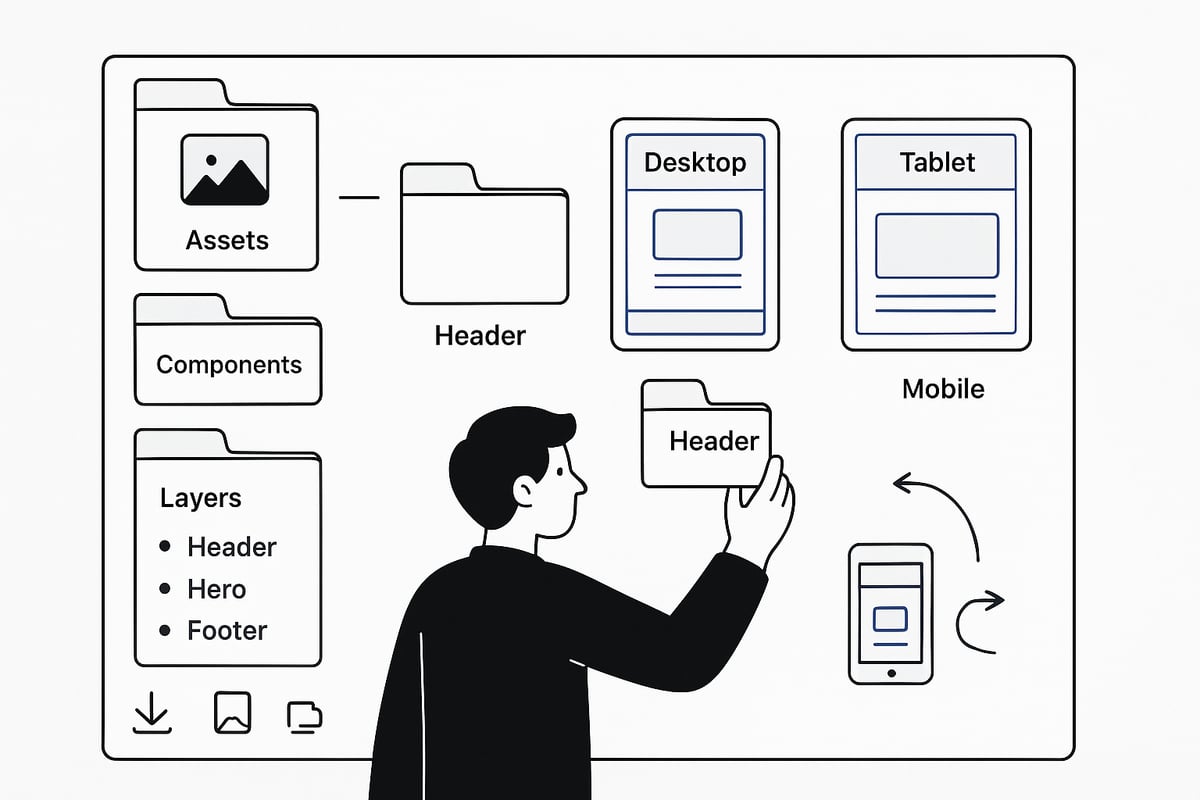
Organizing your Figma file is the first building block for a smooth figma to html process. Start by creating clear frames for each page or section and nest layers in a logical hierarchy. Use consistent naming conventions, such as Header, Main, or Footer, to mirror semantic HTML tags.
Leverage Figma components and variants to group reusable elements like buttons or cards. This not only streamlines the design but also makes the HTML export more modular. For multi-page sites, section your workspace and label each group accordingly.
Document key design specs, such as padding, margin, and color codes, directly in your Figma file. When working on landing pages, reviewing Figma landing page tips can help you build a strong foundation before moving to figma to html export.
Optimizing for Responsiveness and Accessibility
Responsive design is essential for any figma to html project in 2026. Set up flexible layouts using Figma’s auto-layout and constraint features to ensure your design adapts smoothly to different screen sizes. Preview your frames in desktop, tablet, and mobile modes for full coverage.
Accessibility is equally important. Choose color palettes with sufficient contrast, and use legible font sizes for all text elements. Add alt text to images and define accessible labels for buttons and form fields within Figma. Prepare your design so it’s easily navigable by keyboard and screen readers, supporting a wider audience in the figma to html workflow.
Exporting and Managing Assets
Efficient asset management is crucial for figma to html conversion. Identify all images, icons, and illustrations that need to be exported. Choose the best formats for each use case—SVG for icons and illustrations, PNG or WebP for photos.
Compress assets within Figma or use plugins for bulk optimization, ensuring fast page loads post-export. Use Figma’s export settings to batch-download assets and organize them in folders that match your site’s structure. Proper asset preparation removes friction when integrating them into your figma to html project.
Integrating Fonts and Styles
Consistent typography and color styles are vital for high-quality figma to html results. Use web-safe fonts or integrate Google Fonts directly into your design. Set up a clear type scale in Figma and map these styles to CSS variables or classes.
Document your color palette and gradients as style guides for developers. Always verify that your font choices are licensed for web use to avoid legal issues after figma to html export. This step ensures that the visual identity of your site remains intact from design to code.
Prototyping Navigation and Interactivity
Interactive prototypes help bridge the gap between Figma and HTML. Link buttons, menus, and navigation flows within your Figma file to guide developers on intended behaviors. Use Figma’s prototyping tools to simulate interactions and transitions.
Document any dynamic or animated elements, such as hover states or modal dialogs, so developers can replicate them accurately in HTML. Before exporting, test your prototype thoroughly to catch any missing links or inconsistencies. This attention to detail streamlines the final figma to html conversion and enhances the user experience.
Step-By-Step Figma to HTML Conversion Workflow
Converting your Figma designs to HTML in 2026 is a multi-stage process that requires precision, the right tools, and a focus on code quality. This workflow guides you through each crucial step, ensuring your project goes from design to deployment seamlessly. Whether you are new to figma to html or seeking to refine your process, follow these best practices for a smooth, efficient conversion.
Step 1: Selecting the Right Figma to HTML Conversion Tool
Selecting the right plugin or tool is foundational for any successful figma to html workflow. In 2026, the landscape offers a mix of automated plugins and manual export options, each with unique strengths.
Consider these criteria when evaluating tools:
Code quality and semantic structure
Responsiveness and device compatibility
Asset handling (SVG, PNG, WebP support)
Integration of modern CSS frameworks
Community ratings and update frequency
A quick comparison table:
Tool | Code Quality | Responsive | Asset Support | Notable Feature |
|---|---|---|---|---|
Export Design | High | Yes | SVG, PNG | Semantic class naming |
TeleportHQ | Very High | Yes | SVG, WebP | AI-assisted code generation |
HtmlGenerator | Moderate | Yes | PNG | Simple export for quick jobs |
For advanced automation, tools inspired by agentic frameworks, such as WebVIA: Interactive UI-to-Code Generation, are shaping the future of figma to html conversion. Review plugin documentation, user feedback, and ensure the tool is up to date before committing.
Step 2: Setting Up Your Export Options
Once your tool is chosen, configure export settings to match project needs. For figma to html, this means selecting the right frames or pages, defining export formats, and optimizing assets.
Key setup steps:
Choose which frames or pages to export
Enable prototype link exports for navigation
Decide on output: ZIP bundle, HTML/CSS files, or assets only
Optimize images for web (compression and format)
Configure shared CSS for consistency
Most modern plugins offer customizable export settings for multi-page sites. For example, Export Design allows advanced selection of frames, batch export of assets, and flexible CSS generation. Taking time to set up these options ensures your figma to html output is organized and ready for the next stage.
Step 3: Generating HTML and CSS Code
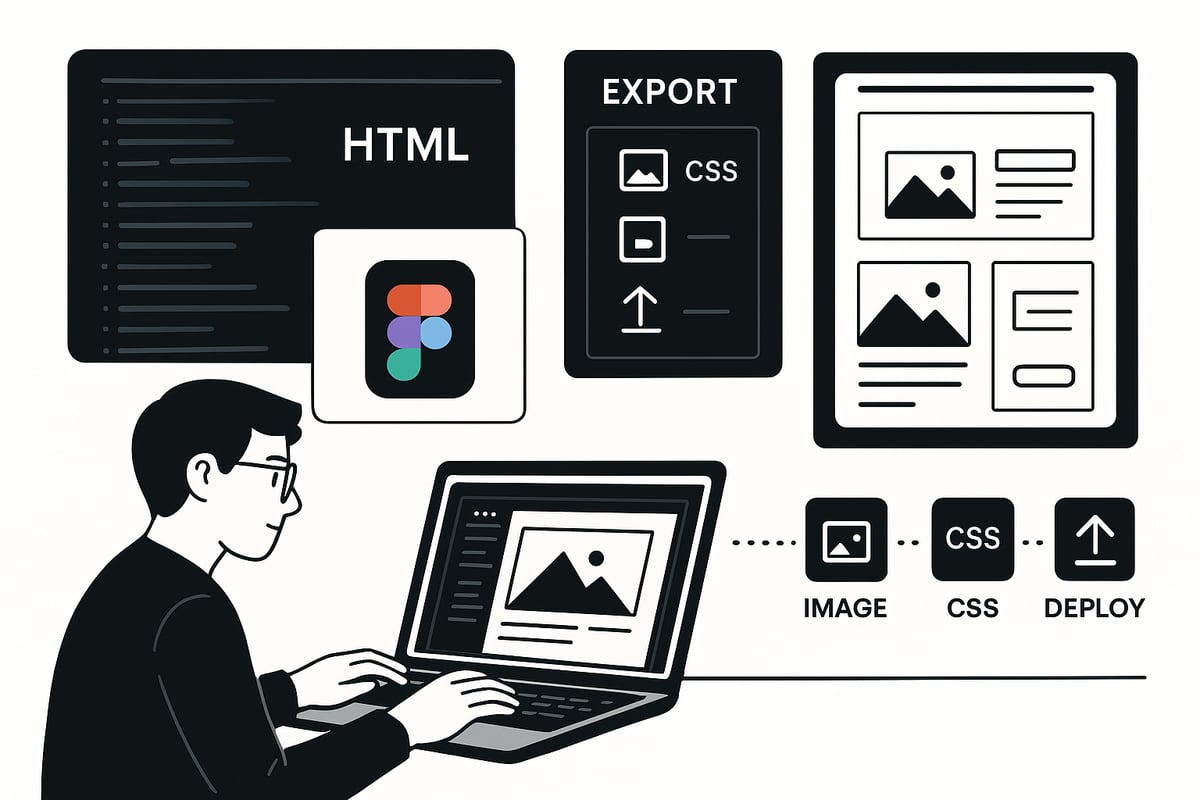
Initiate the export process directly within your chosen plugin to generate the core code. The figma to html process should produce clean, semantic HTML tags and well-structured CSS.
Follow these steps:
Preview generated HTML for each page or component
Check for semantic tags:
<header>,<nav>,<main>, etc.Review class naming for clarity and maintainability
Validate CSS for modularity and scalability
Example output:
Troubleshoot any export errors, such as missing assets or symbol conversion issues. Consistent review at this stage ensures your figma to html export meets quality standards and is ready for further refinement.
Step 4: Handling Images, Icons, and Other Assets
Managing visual assets is critical in the figma to html process. Export images, icons, and illustrations in the proper formats for performance and clarity.
Asset workflow:
Identify all required images and icons within Figma
Export assets in SVG for icons, WebP or PNG for images
Compress files for faster site load times
Ensure asset paths in HTML are correct
Organize assets into folders for easy integration
Many plugins automate batch export and asset mapping, but always double-check that all visuals are present and referenced correctly. Proper asset management enhances the efficiency and reliability of your figma to html workflow.
Step 5: Refining and Optimizing Exported Code
After exporting, refine your HTML and CSS to ensure maintainability and performance. Automated figma to html exports may include redundant or bloated code that needs attention.
Refinement tips:
Remove unused classes and elements
Modularize CSS using variables for colors, fonts, and spacing
Refactor for reusability (e.g., component-based CSS)
Use semantic HTML for accessibility and SEO
Validate code with browser dev tools and online validators
A clean codebase not only improves performance but also simplifies future updates. Investing time in this step is essential for a high-quality figma to html result.
Step 6: Testing Responsiveness and Cross-Browser Compatibility
Testing ensures your figma to html conversion performs well across devices and browsers. Use browser dev tools to simulate different viewports and interactions.
Testing checklist:
Preview site on desktop, tablet, and mobile
Check for layout, spacing, or overflow issues
Validate accessibility with tools like Axe or Lighthouse
Ensure consistent rendering in Chrome, Firefox, Edge, and Safari
Address any discrepancies promptly, as even minor issues can impact user experience. Comprehensive testing is the final safeguard in the figma to html workflow.
Step 7: Deploying Your HTML Website
With your figma to html code tested and refined, you are ready to deploy. Export your project files, choose a hosting solution, and set up version control for collaborative updates.
Deployment steps:
Export final ZIP bundle or push to Git repository
Choose hosting: static site host, CMS, or cloud platform
Integrate backend systems if needed
Maintain ongoing updates from Figma source files
Monitor performance and gather user feedback
For agencies, startups, and SaaS teams, a streamlined deployment process keeps projects on schedule and ensures a robust online presence. Regular updates and monitoring help sustain the value of your figma to html investment.
Advanced Tips, Best Practices, and Troubleshooting
Mastering figma to html conversion requires more than just technical steps. To ensure your code is robust, accessible, and future-proof, focus on advanced strategies and real-world insights. Below, we break down essential practices and troubleshooting approaches, helping you deliver production-ready results every time.

Enhancing Code Quality and Maintainability
A high-quality figma to html workflow starts with clear structure and maintainability. Adopt naming conventions like BEM to keep classes logical and modular. Use CSS preprocessors such as SASS or frameworks like Tailwind to break styles into reusable pieces.
Leverage CSS variables for colors and fonts, which simplifies updates and promotes consistency. Keep your code DRY by extracting repeated patterns into components or utility classes. Document your choices directly in code comments or handoff notes to ensure smooth collaboration.
For those interested in leveraging machine learning for reusable design elements, the CoGen: Reusable UI Components in Figma article explores advanced strategies to optimize figma to html processes.
Ensuring Accessibility and SEO Compliance
Accessibility and SEO are core to any successful figma to html project. Always use semantic HTML5 tags to structure your site, such as <header>, <main>, and <nav>. Add descriptive alt text and ARIA labels to all images and interactive elements.
Organize headings in a logical order for screen readers, and provide clear navigation. Optimize your site for Core Web Vitals, ensuring fast load times and smooth interactions. Be mindful of common pitfalls, such as missing labels or improper contrast, which can arise in automated exports.
A checklist for accessibility and SEO:
Semantic tags for layout
Alt/ARIA labels on images and buttons
Logical heading hierarchy
Fast loading and mobile-friendly design
Troubleshooting Common Figma to HTML Issues
Troubleshooting is vital for a seamless figma to html workflow. Common export issues include mixed strokes, unsupported shapes, or font mismatches. When handling complex components, manually refine the exported HTML or adjust Figma layers for better results.
If layouts break after export, check for incorrect constraints or missing auto-layout settings. Debug prototype links or navigation by comparing Figma flows to the live HTML. Stay updated with plugin releases to benefit from bug fixes and new features.
Quick fixes:
Revisit Figma layer structure for clarity
Adjust export settings for asset compatibility
Use browser dev tools to inspect problematic code
Keeping Up with 2026 Figma and Web Development Trends
Staying current is essential when converting figma to html. Embrace new Figma features that enhance design-to-code workflows, like improved component variants or real-time collaboration tools.
AI-assisted code generation is now more accessible, speeding up complex exports without sacrificing quality. Integrate Figma with deployment pipelines for continuous delivery. Community plugins, such as those inspired by frameworks like ScreenCoder: Visual-to-Code Automation, offer innovative solutions for automating repetitive tasks.
Monitor plugin updates and participate in Figma communities to discover emerging best practices and tools.
Real-World Examples and Case Studies
Many teams have refined their figma to html processes through hands-on experience. Agencies launch multi-page business sites rapidly by combining design systems and automated exports. Startups iterate on MVPs and landing pages for fast market entry.
SaaS companies maintain consistency by exporting UI components directly from Figma. Freelancers deliver end-to-end services, using popular plugins with tens of thousands of users. These real-world examples highlight the impact of efficient figma to html workflows on project speed, quality, and collaboration.
The Future of Figma to HTML: Automation, AI, and No-Code Platforms
The landscape of figma to html workflows is transforming rapidly as automation and artificial intelligence take center stage. As we look ahead to 2026, expect smarter tools, seamless integrations, and new ways to bridge design with production code.
The Rise of Automated and AI-Powered Conversion Tools
Automated and AI-powered figma to html conversion tools are reshaping how teams build for the web. Recent advancements enable plugins to translate Figma designs into semantic, production-ready HTML and CSS with greater accuracy.
AI-driven plugins analyze design intent, generate cleaner code, and even suggest improvements for responsiveness and accessibility. Tools like TeleportHQ and DhiWise leverage machine learning for smarter mapping between design components and code structures. These innovations not only speed up the figma to html process but also reduce manual errors, making them a staple in modern workflows.
No-Code and Low-Code Website Builders
No-code and low-code platforms have become essential for agencies, startups, and individuals seeking to transform figma to html designs into live sites without deep coding knowledge. These platforms let users visually map Figma layouts to web components, then export or publish instantly.
For those seeking inspiration or ready-made solutions, exploring Figma website template ideas can accelerate the journey from figma to html. While these tools excel for rapid launches, complex projects may still require custom code refinement to meet advanced requirements.
Maintaining Design Consistency Across Platforms
Maintaining consistency is critical when moving from figma to html, especially for teams managing design systems. Figma’s robust component libraries and style tokens help ensure that exported HTML and CSS match the original vision.
Updating designs in Figma and syncing changes to code is easier than ever, thanks to enhanced integration between design and development platforms. Teams can now rely on automated handoff tools to minimize miscommunication and preserve design fidelity throughout the figma to html pipeline.
Predictions for 2026 and Beyond
Looking ahead, figma to html workflows will become even more intelligent and collaborative. Expect greater adoption of AI-driven design-to-code systems, seamless pipeline integration, and real-time feedback features for remote teams.
Trend | Impact on Figma to HTML |
|---|---|
AI-assisted code generation | Faster, higher-quality exports |
Integrated deployment tools | Quicker launch cycles |
Enhanced collaboration | Reduced friction across teams |
Automated accessibility | Better compliance with standards |
Despite this progress, human oversight will remain vital for quality assurance and unique project needs. Anticipate new Figma features and export plugins that push the boundaries of what figma to html can achieve.
Share article





$249
$3601
All Access
Save with our all access bundle - get access to all premium Framer templates.
38
+
Framer Templates
51
+